
There are 2 ways to create order on Onos Shopify App.
- Create Manual Order
- Import Order
This documentation will guide the detail steps to “Create print on demand order to fulfill with Onos”
1. Create Manual Order
1.1 Add new manual order
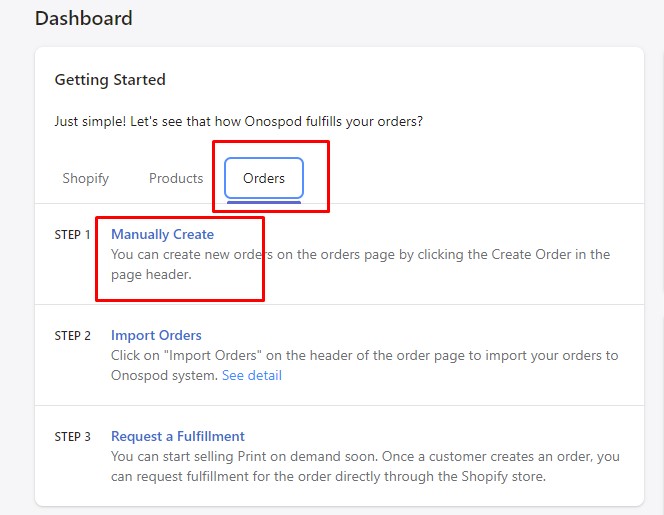
Dashboard -> Orders > Manually Create, then fulfill all order information:
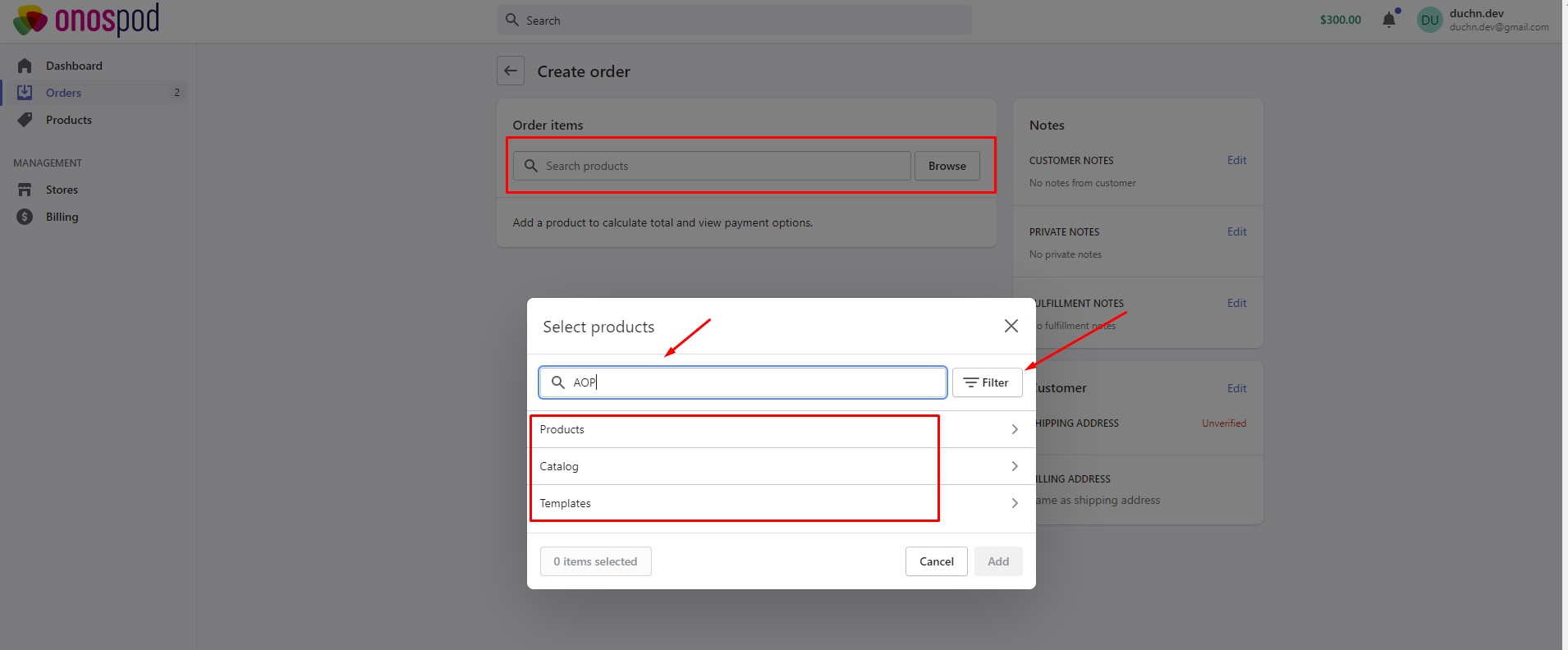
- Order Items: You can search or browser item orders which are available on Onospod.
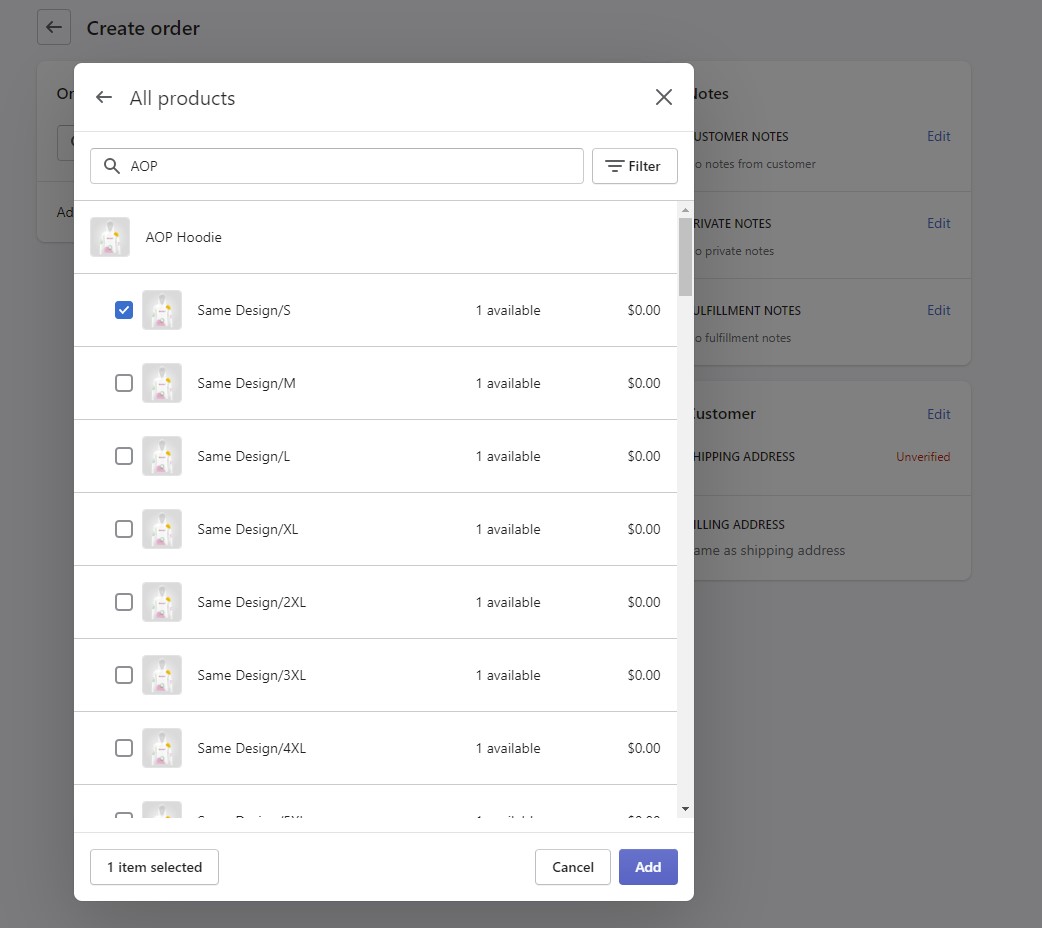
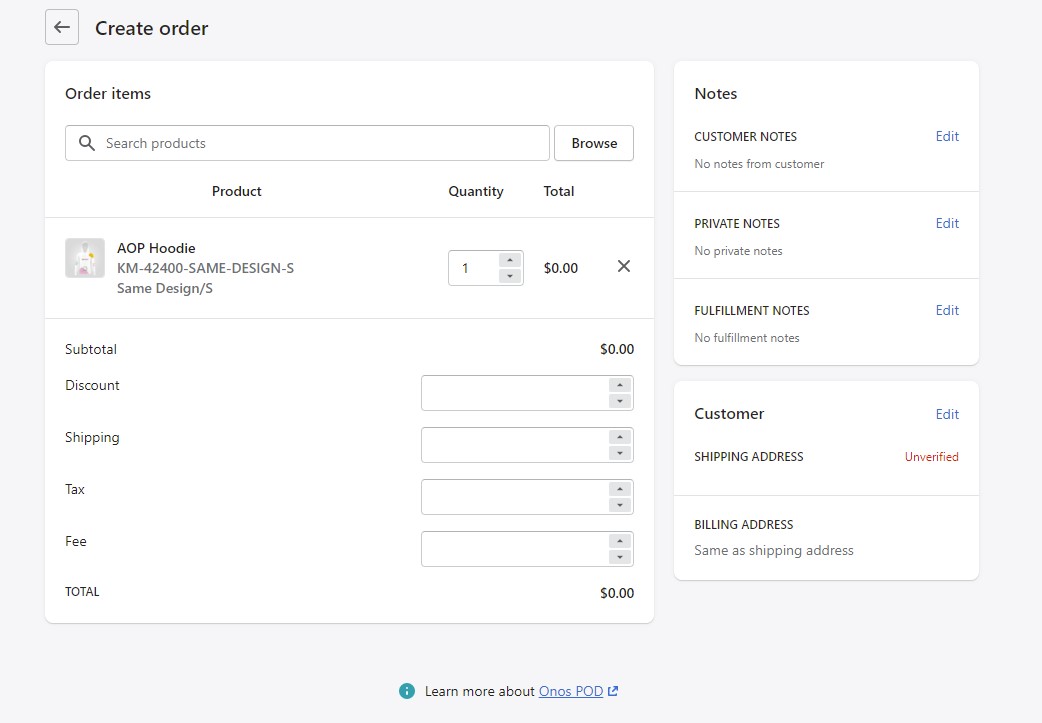
- Quantity: Number of product on the cart
- Subtotal
- Discount
- Shipping
- Tax
- Fee
- Total order
- Customers Notes
- Private notes
- Fulfillment Notes
- Customer Shipping Address
- Billing Address
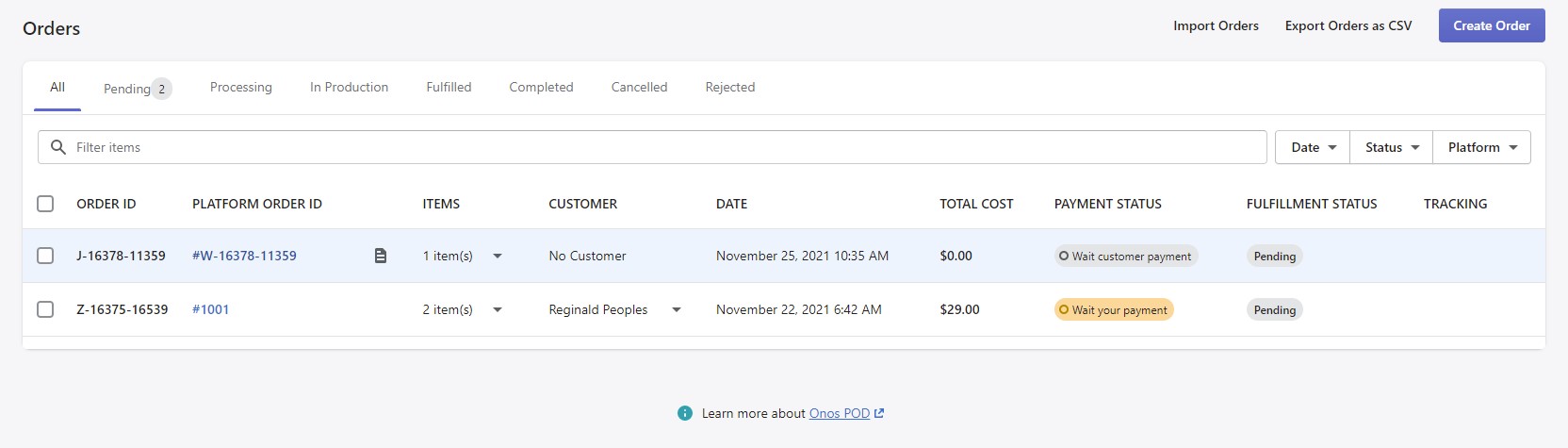
1.2 Manage Onos Print on Demand Orders:
Open orders, you will see all orders:
Manage Order Status:

- Pending
- Processing
- In production
- Fulfilled
- Completed
- Cancelled
- Rejected
2. Import/Export Orders to CSV
2.1 Import/Export Orders to CSV
With Onos, you can create order manually or import a bulk of orders by importing file CSV.
2.2 Manage Orders Print on demand:

This is the end of tutorial “How to Create a Manual Order by using Onospod”.